
What Are Workflows?
Workflows in Centime allow you to automate communication and task assignments based on customer segments or invoice schedules.
There are four types:
-
🧾 Invoice-Level Workflows: Triggered by invoice due dates to send reminders or assign tasks per invoice. Best suited for customers with fewer invoices where individualized communication is helpful.
-
👤 Customer-Level Workflows: Scheduled independently of individual invoices; sends communications on fixed weekdays and includes all open invoices for the customer. Ideal for customers with many open invoices who don’t require individual reminders for each.
-
🧩 None: Create a workflow entirely designed by Automations. Perfect for fully custom communication strategies or internal-only escalations.
-
💳 Auto-Pay Workflows: Automatically assigned to Auto-pay customers. Triggered by payment dates instead of due dates and uses dedicated Auto-pay templates.
This flexible system supports consistent, timely outreach and tailored collections strategies.
Creating an Invoice-Level Workflow
-
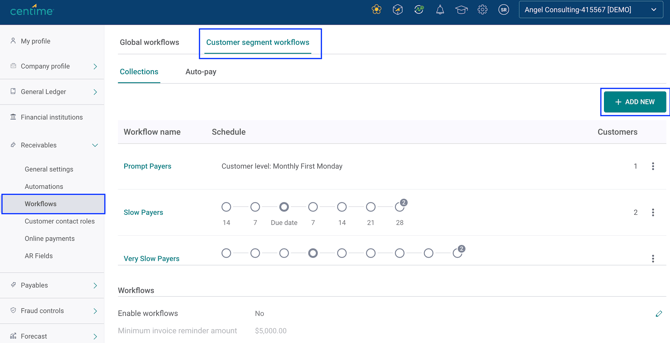
Navigation: Go to
Settings > Receivables > Workflows > Customer segmented workflows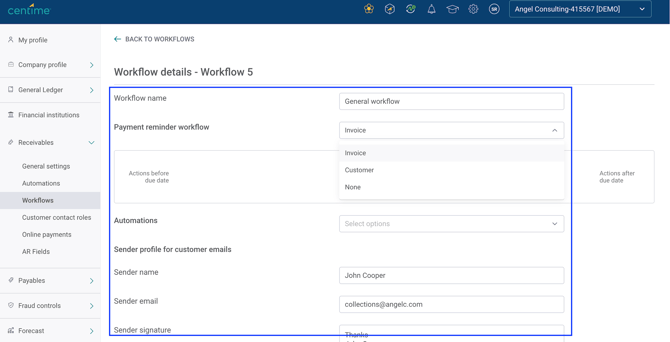
-
Add Workflow: Click Add new and populate a name
-
Workflow Type: Select Invoice
-
Workflow Schedule:
-
Define actions before and after due dates (Invoice workflows) or by day of the week (Customer workflows)
-
Action types:
-
📧 Send customer email (PDFs auto-attached)
-
🔔 Send internal notification
-
✅ Assign tasks
-
-
➕ Add Additional Recipients: Use email, contact roles, or internal users (max 15 total per communication)
-
📝 Customize reminder templates via Manage Template
-
🔗 Learn about Customer-level workflows.
⚙️ Adding Automations
You can add up to 100 automations per workflow. Choose actions from the Automation dropdown.
🔗 Learn how to create automations.
💳 Auto-Pay Workflows
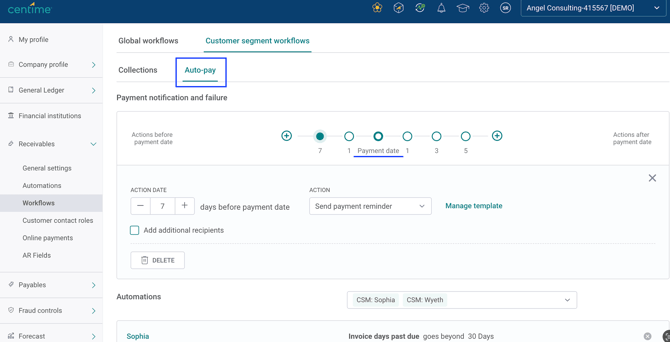
Customers on Auto-pay are auto-assigned to a specialized workflow.
-
🔁 Trigger: Based on payment date (invoice date, due date, or discount window end), not due date
-
🧾 Template: Update templates by selecting
Manage tempalate
📦 Bulk Enrollment
-
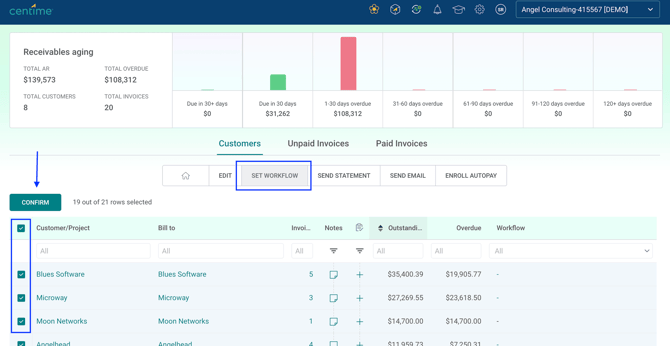
Use
Set Workflowbulk action in the Customers tab -
⚠️ Not available for Auto-pay customers (though their workflow can be changed individually)
-
Input customer email addresses if not already saved
-
Select desired workflow and confirm
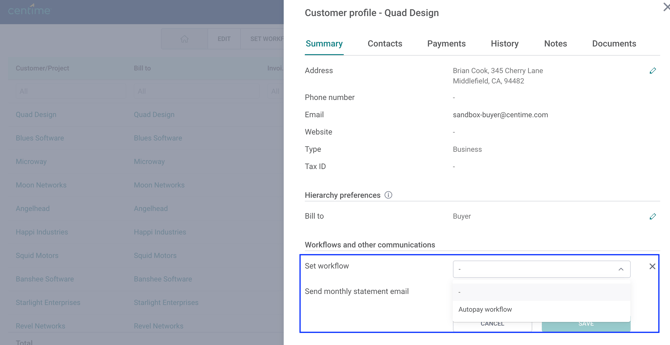
👤 Individual Enrollment
-
Click on a customer name to open the Customer Profile
-
In the Summary tab, scroll to Workflows and Other Communications
-
Click the ✏️ pencil icon next to 'Set Workflow' to assign
🏷️ Additional Notes
-
🧬 Hierarchy Support: If billing is set to parent (Immediate/Top), child accounts follow the parent’s workflow, but can be modified individually
-
🕑 Timing: Workflow emails are sent at 2:30 ET, allowing collections teams to reconcile payments from the previous day
🔗 Unclear how to bring this to life? See an example.