
When you code an invoice line with a tax code, Centime now shows the tax percentage in the tax code name, calculates the tax amount for the line, and shows the line's gross amount (amount + tax). The invoice total includes tax, so you can see exactly how each tax code affects what you owe.
Payables permission needed: Upload, process, and code documents
Before you start: The Tax Code field must be enabled as a line coding field in Payables Settings > Invoice Fields. Tax codes and their rates come from your accounting system (GL).
Apply a tax code to an invoice line
- Open the invoice and go to the Invoice summary tab.
- Expand Lines.
- In the line's Line coding area, open the Tax code dropdown. Each tax code shows its rate in brackets, for example VAT_GBP_GST_5 (5%).
- Select the tax code. Centime calculates the line's Tax amount and Gross amount right away.
- Click Save.
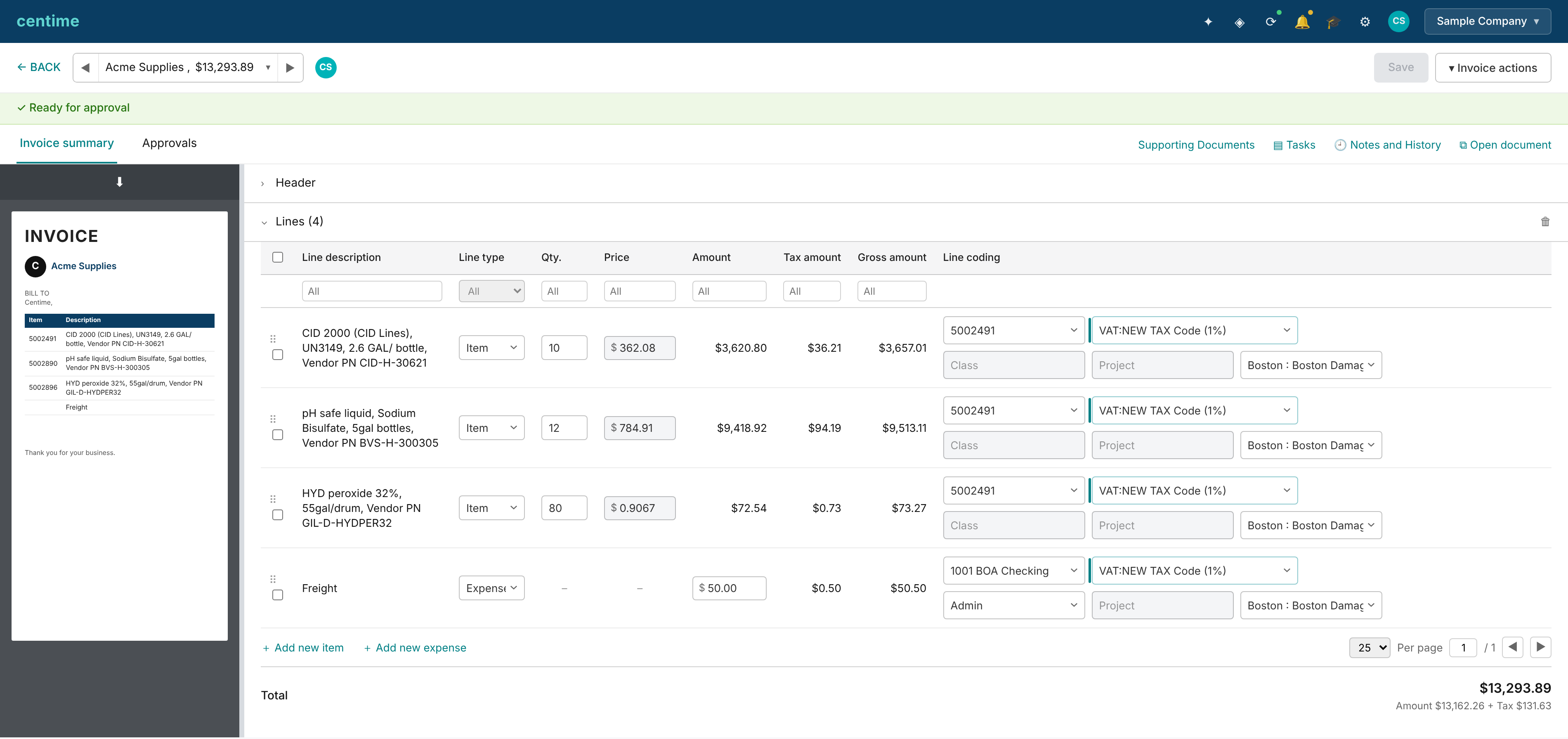
What you'll see on the invoice
- Tax amount column: the tax for the line, calculated as Amount × tax rate.
- Gross amount column: Amount + Tax amount. Both columns sit right next to the Amount column.
- Invoice total: the gross total (amounts plus tax), with a breakdown underneath, for example Amount $13,162.26 + Tax $131.63.

If you change a line's quantity, price, amount, or tax code, the tax amount, gross amount, and total update automatically.
Example: A $100.00 expense line coded to a 5% tax code shows a Tax amount of $5.00 and a Gross amount of $105.00.
Good to know
- Approvals use the gross total. Invoice approval policy thresholds are checked against the total including tax.
- PO matching is not affected. The PO workflow and the line matching tab work exactly as before.
- Tax rates stay in sync with your GL. If a tax rate changes in your accounting system, the updated rate is reflected in Centime. Invoices already coded with the old rate keep their original values.
IMPORTANT - Removing Tax Code from Invoice Fields
If you turn off the Tax Code field in Payables Settings > Invoice Fields, Centime recalculates amounts on invoices that are still in progress:
- In-progress invoices: the Tax amount and Gross amount columns are removed and the invoice total is recalculated without tax.
- Posted invoices: the gross total still shows, but the Tax amount and Gross amount columns no longer appear.
Before saving, you'll see this message: "Removing the Tax Code will trigger a recalculation of amounts on existing invoices. This may take a few minutes. Do you want to proceed?" Click Proceed to continue or Cancel to keep the field.
While the recalculation runs, don't make any change to invoices as your changes may be lost. It can take a few minutes (about 2 minutes per 1,500 invoices).
Each affected invoice gets an entry in Notes and History: Document Updated by System — Invoice amount changed from [old amount] to [new amount] due to removal of the Tax Code as an invoice field.