
1. Partial Payments: Let Buyers Pay What They Can, When They Can
Why This Matters
Now you can allow your customers to make partial payments on invoices instead of paying the full amount upfront. This helps accelerate collections, reduces friction for buyers, and supports better cash flow.
How It Works
For AR Collectors: in AR Module
- Enable Partial Payments
- Navigate to:
Settings > Receivables > Online Payments > Payment Preferences > Allow Partial Payments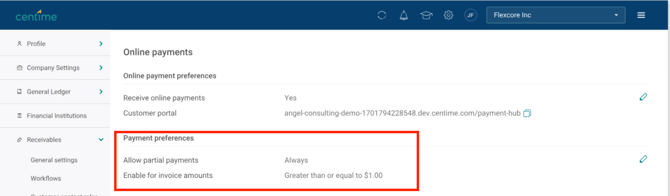
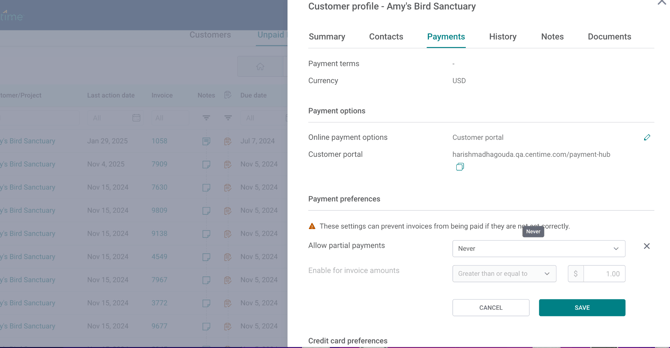
- Choose your preferred configuration:
- Never – Disable partial payments for all buyers.
- Always – Allow all buyers to make partial payments.
- Buyer-Level Override – Customize at individual buyer level via
Buyers > Payment Settings
- Never – Disable partial payments for all buyers.
- Navigate to:
For Buyers using Customer Portal:
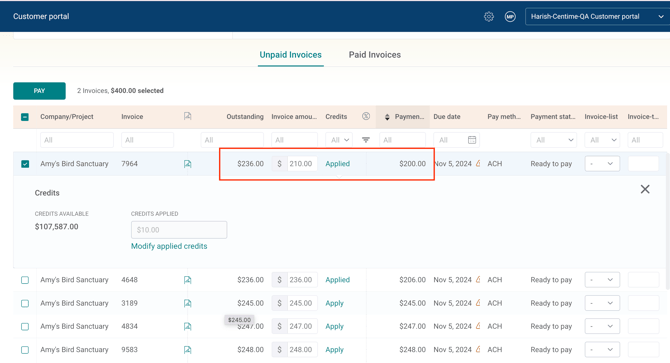
Once enabled, buyers will see the option to edit the invoice amount directly in their Customer Portal.
Step 1: Select invoices to pay under the Unpaid Tab
- The Invoice Amount field shows the full outstanding amount by default.
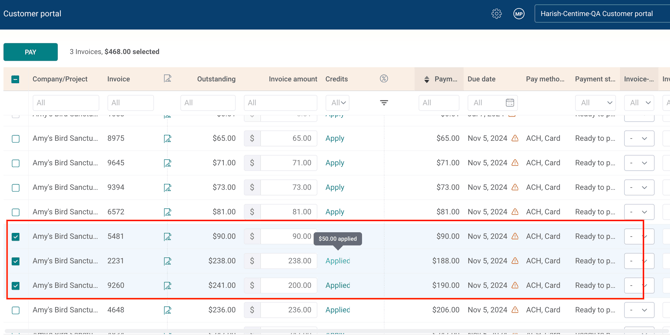
- Buyers can edit this Invoice Amount editable column to pay partially.
- Available Credits and Term Discounts can also be applied, automatically updating the Payment Amount.
- Hover over Applied Credits status to view to applied credit and modify the amounts if needed.
- Buyers can select multiple Invoices and click on 'Pay' to view the payment summary before initiating the grouped invoice payment.
Step 2: Review the Payment Summary
- Buyers can view the total along with adjustments (credits, discounts) and confirm their final payment amount.
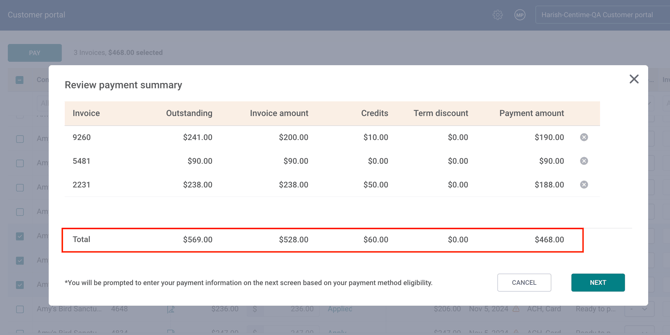
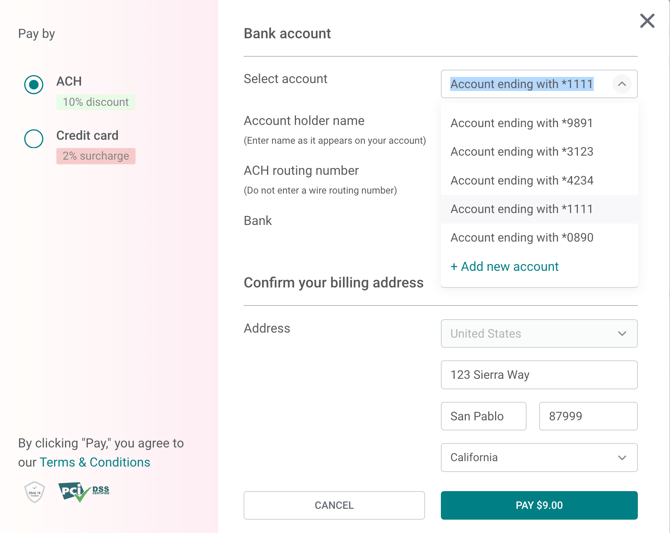
Step 3: Proceed to Payment
- Depending on your payment preference set in AR settings, buyers can pay via ACH or Card or either of the two.
Example: Paid Tab View in AR module for Partial Payment with Adjustments
Your customer, Amy’s Bird Sanctuary, had an invoice for $228.00.
They decided to pay $100.00 as a partial payment.
After adjustments like applicable discounts or surcharges, the payment breakdown is shown in the accordion as below:

Here’s how to interpret the details:
| Accordian Fields | Description |
|---|---|
| Applied Invoice Amount | The total amount your buyer selected to pay - here, $100.00. |
| Term Discount / Credits | Any applicable term discounts or credits automatically applied |
| ACH Discount / Surcharge | Indicates a payment method–based discount applied for paying via ACH — $10.00 here. Surcharge in case paid via Credit Card |
| Payment Amount | The final amount actually paid after all adjustments — $90.00. |
Therefore, in this example, although the buyer chose to pay $100, after the ACH discount was applied, the final paid amount became $90.00, as displayed in the accordion.
This ensures both you and your buyers can clearly see:
-
What was intended to be paid,
-
What discounts, surcharges or credits were applied, and
-
What amount was finally paid.
2. Multiple Payment Methods: Flexibility for Every Payment
Your buyers can now manage multiple saved payment methods - multiple cards and bank accounts (ACH), and choose the right one each time they pay without the need to delete the existing method and add a new one.
What’s New
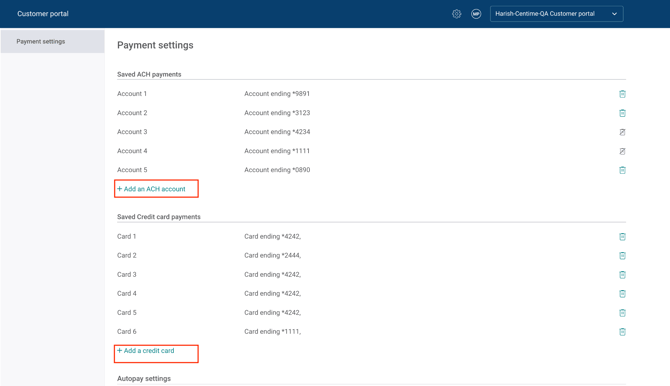
- Buyers can save multiple cards or ACH accounts in their customer portal.
- Settings > Payment Settings > Add an ACH account or > Add a Credit Card
- Buyer can switch payment methods from the dropdown on the fly while making payments.
- All saved Bank accounts (ACH) and Cards will be available to from the drop down.
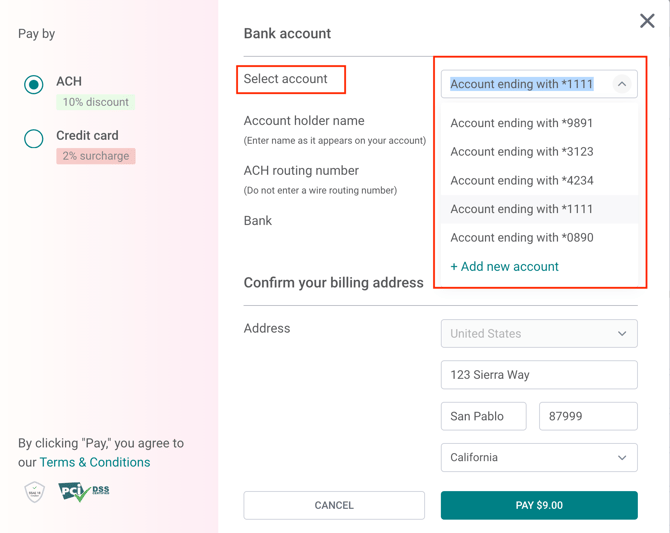
- They can change their preferred payment method directly during checkout - no need to delete or re-add a card.