
Use this guide to pull transaction-level detailed GL reports in Sage Intacct for accounts such as:
- Bank/Checking account (Deposits)
- Undeposited Funds
- Processing Fee GL (Card and ACH network fee)
- Surcharge Income GL
1. Navigate to the General Ledger Report
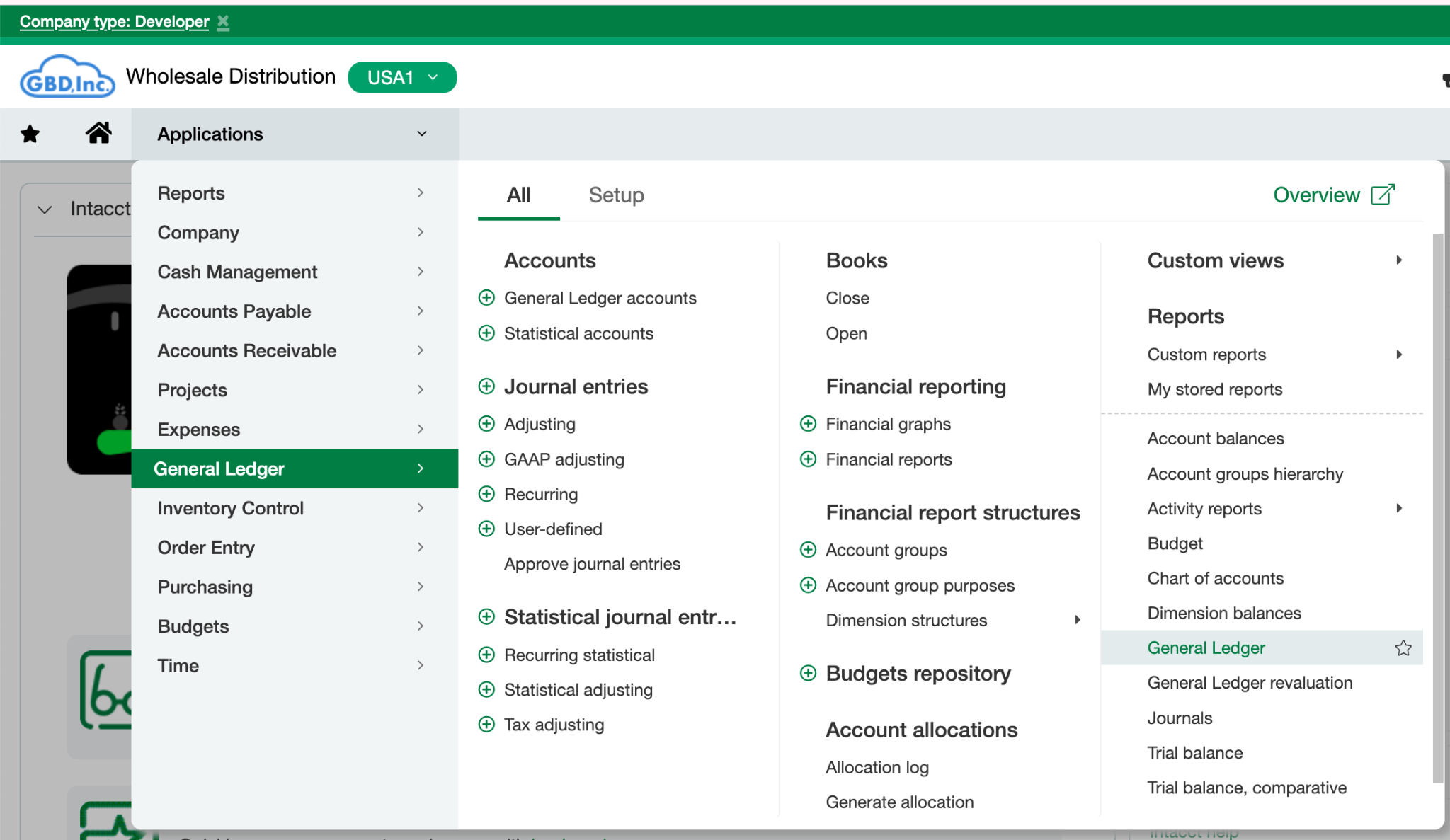
- Log in to Sage Intacct.
- Go to General Ledger.
- Click Reports.
- Select General Ledger.
2. Set Filters for GL Account and Date Range
Scroll to the filter section:
A. Filter by GL Account
- Locate the Multiple Accounts filter for different GL accounts in one report
- Choose the GL account you want:
eg:
- Bank / Checking Account
- Undeposited Funds
- Processing Fees
- Surcharge Income
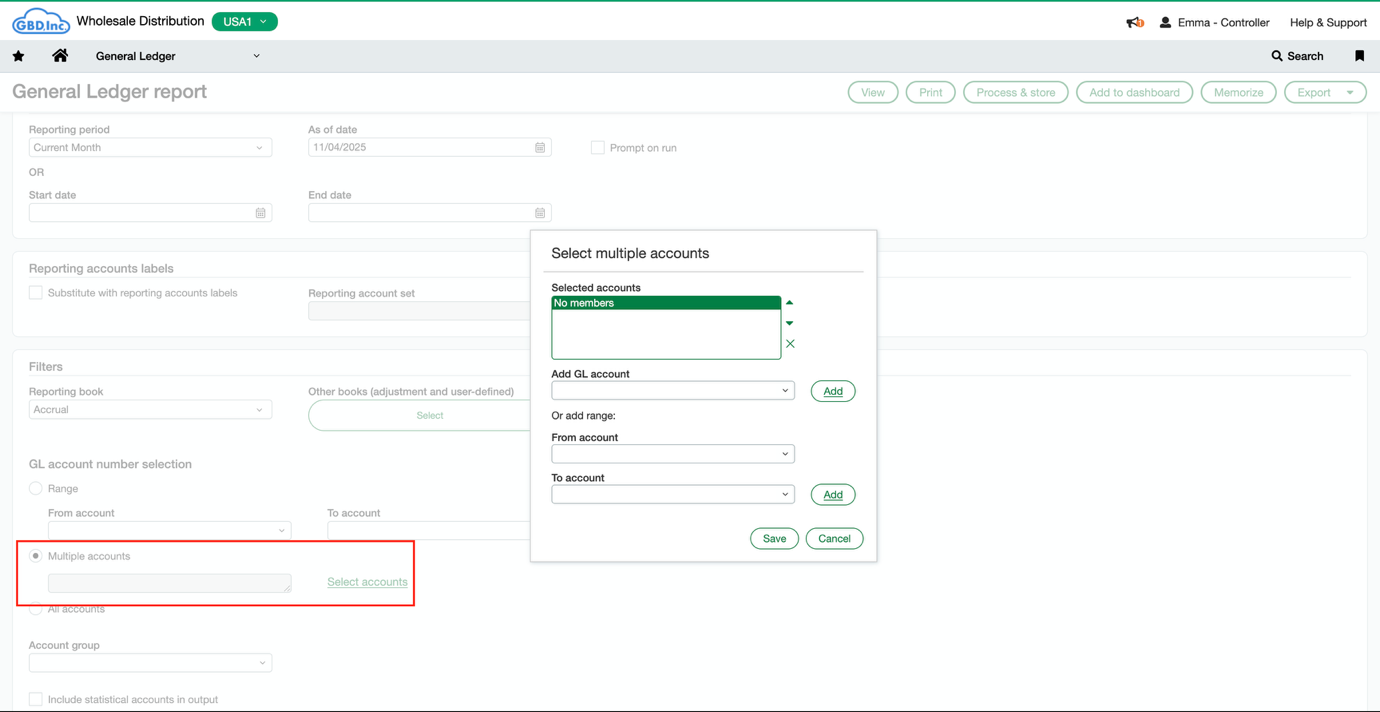
- Bank / Checking Account
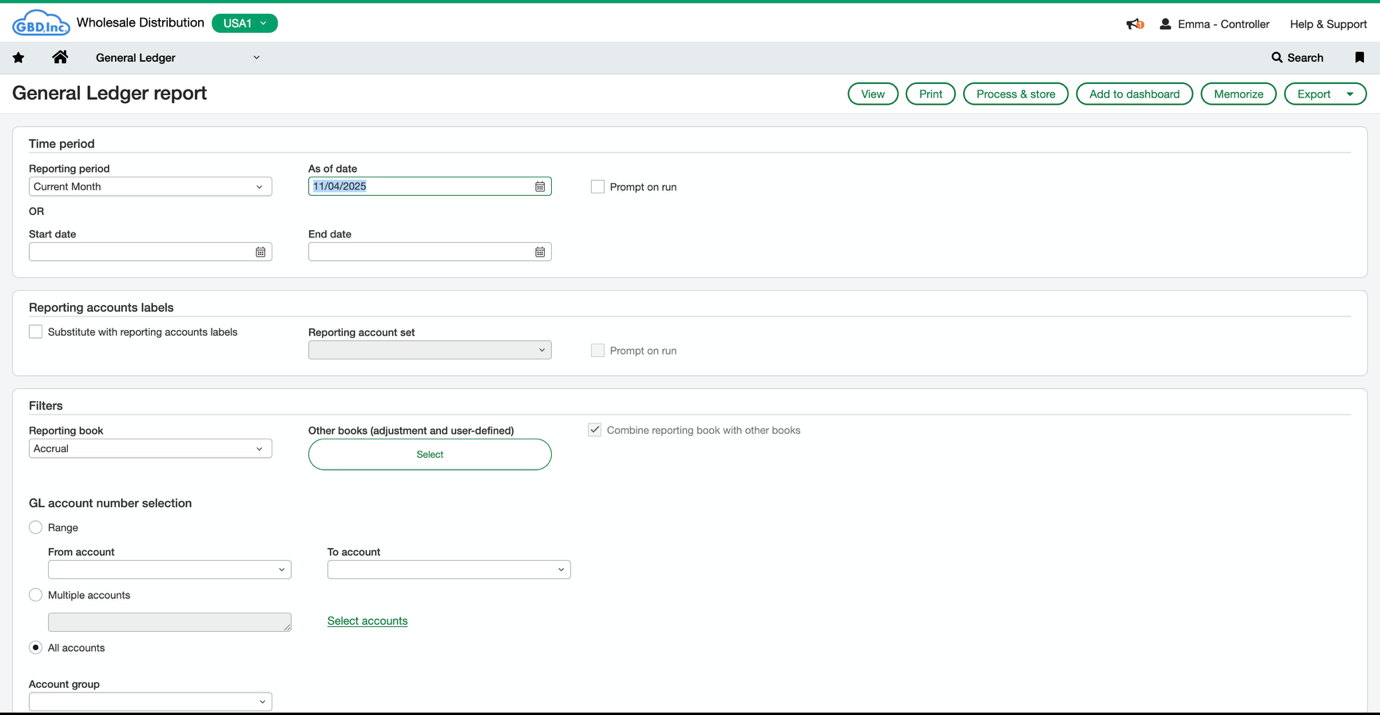
B. Filter by Dates
- Choose Start Date and End Date.
- Select the appropriate period for reconciliation.
3. Enable Transaction-Level Detail (Required)
Under Show transaction presentation, select:
✔ Details (not Summary)
This ensures every debit/credit line appears.
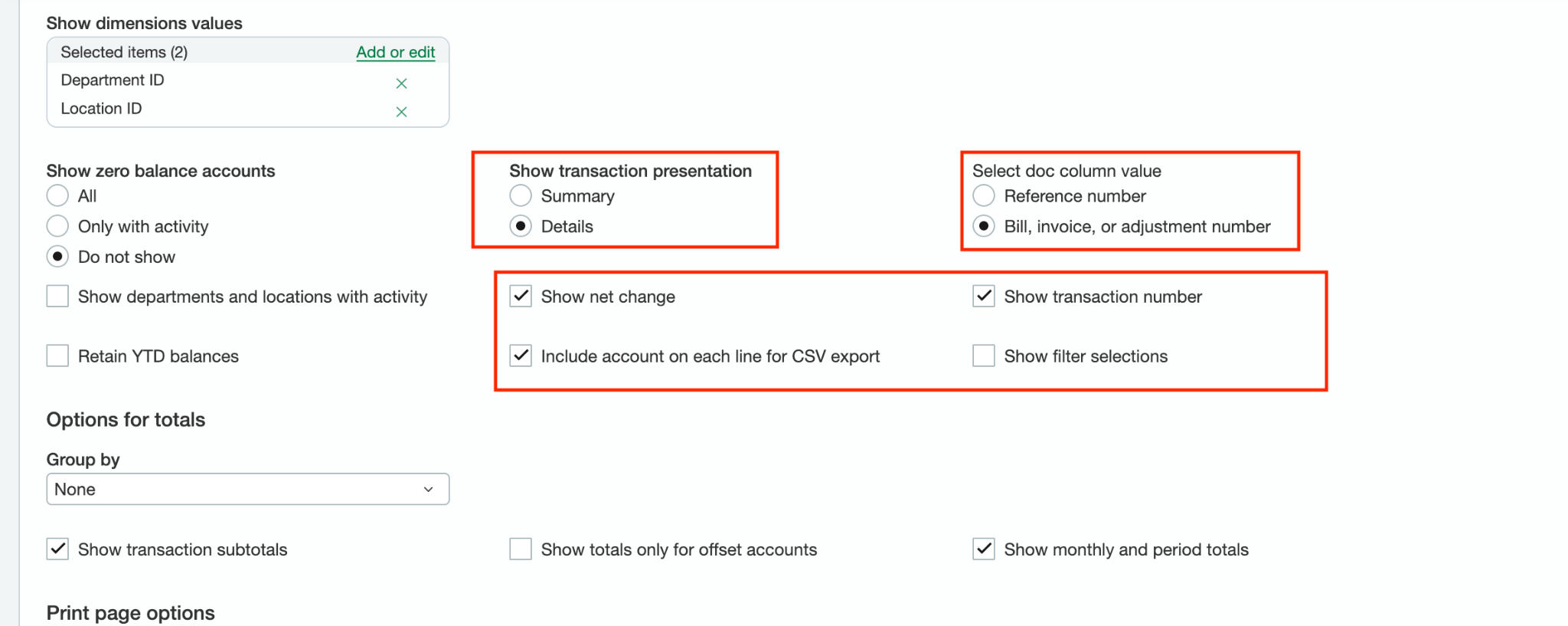
4. Show Document Number & Important Fields
To match Centime settlements, enable:
- Under Select doc column value, choose
✔ Bill, invoice, or adjustment number - Use the Document Number, Transaction Number, or Memo fields to search for Centime-generated identifiers.
Centime-generated values usually include payment IDs, invoice references, or settlement batch codes ideal for reconciling deposits.
5. Run or Export the Report
- Click View to run the report or customize further as need
- Click Print or Export → CSV/Excel for reconciliation.
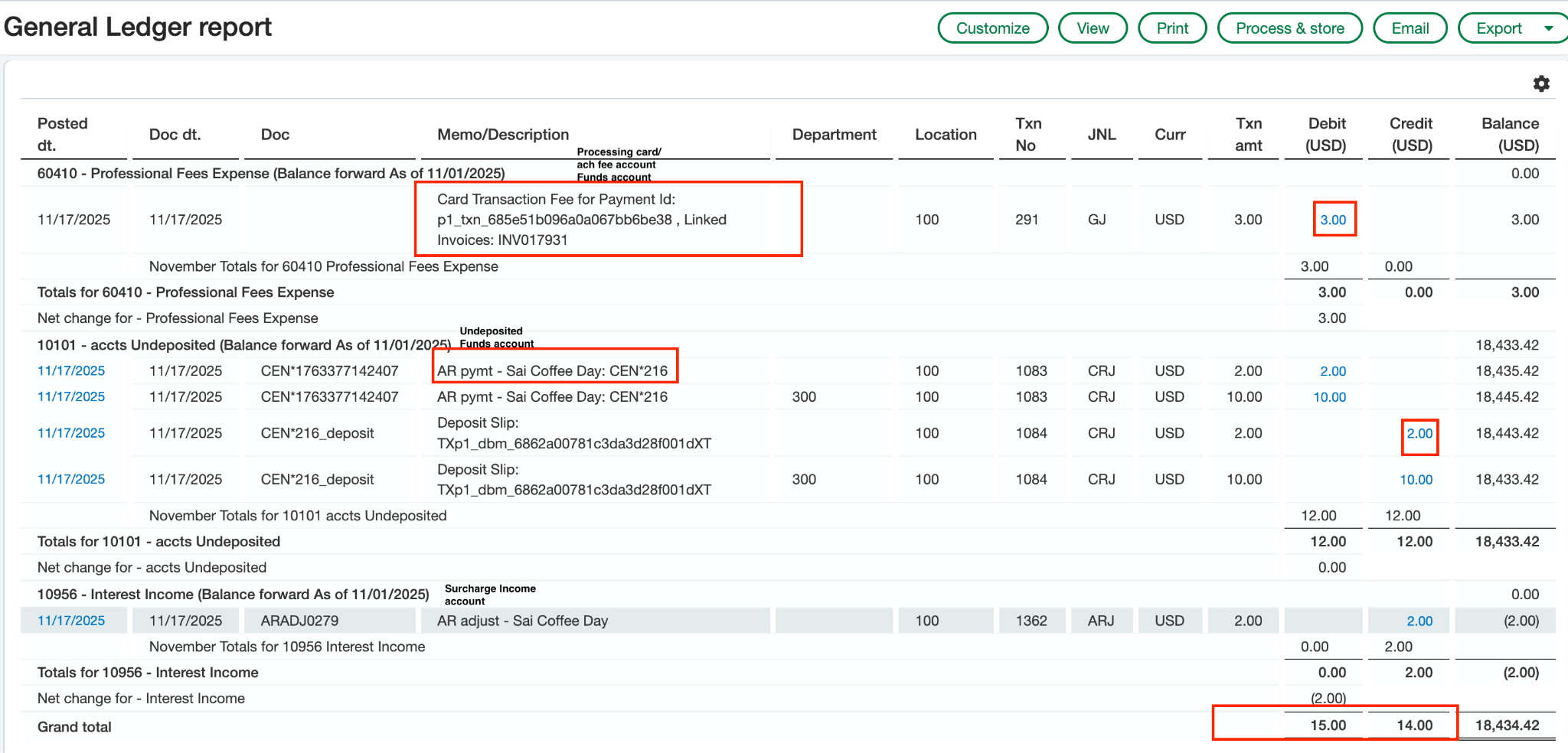
Comparisson in Surchcharge Income vs Card Fee