
This is the most useful report for reviewing payments, fees, deposits, surcharges, discounts, and journal entries created by Centime.
Open the Transaction Detail Report
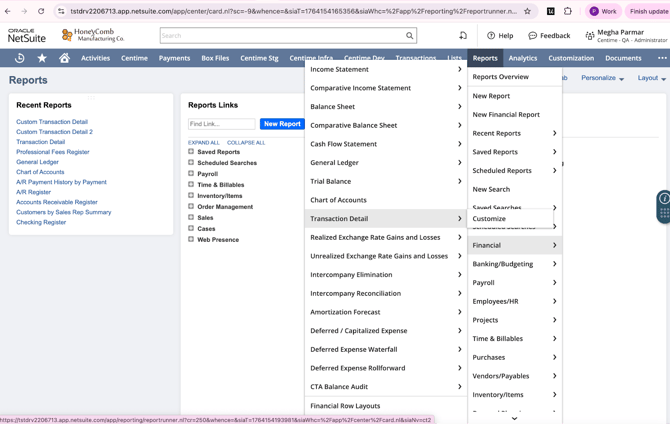
- Go to Reports → Financial → Transaction Detail.
2. Apply the Account Filter
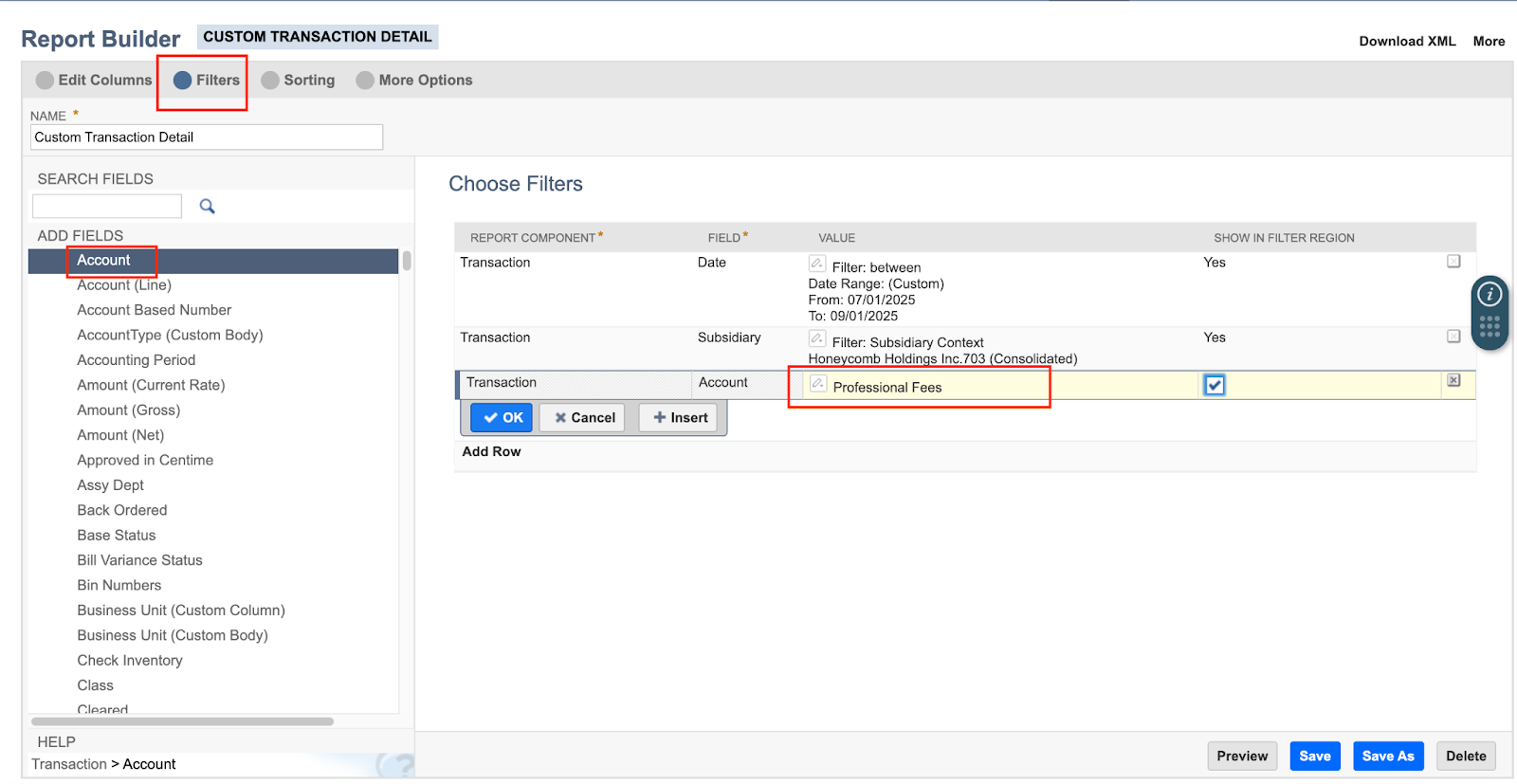
- At the top of the report, click Customize (or Filters if visible).
- In the Filters section:
- Select Account.
- Choose the specific GL account you want to filter by (e.g., Processing Fees, Undeposited Funds, Surcharge GL, Checking account to view Deposits created).
- Select Account.
- Click Apply or Refresh.
3. Review the Filtered Results
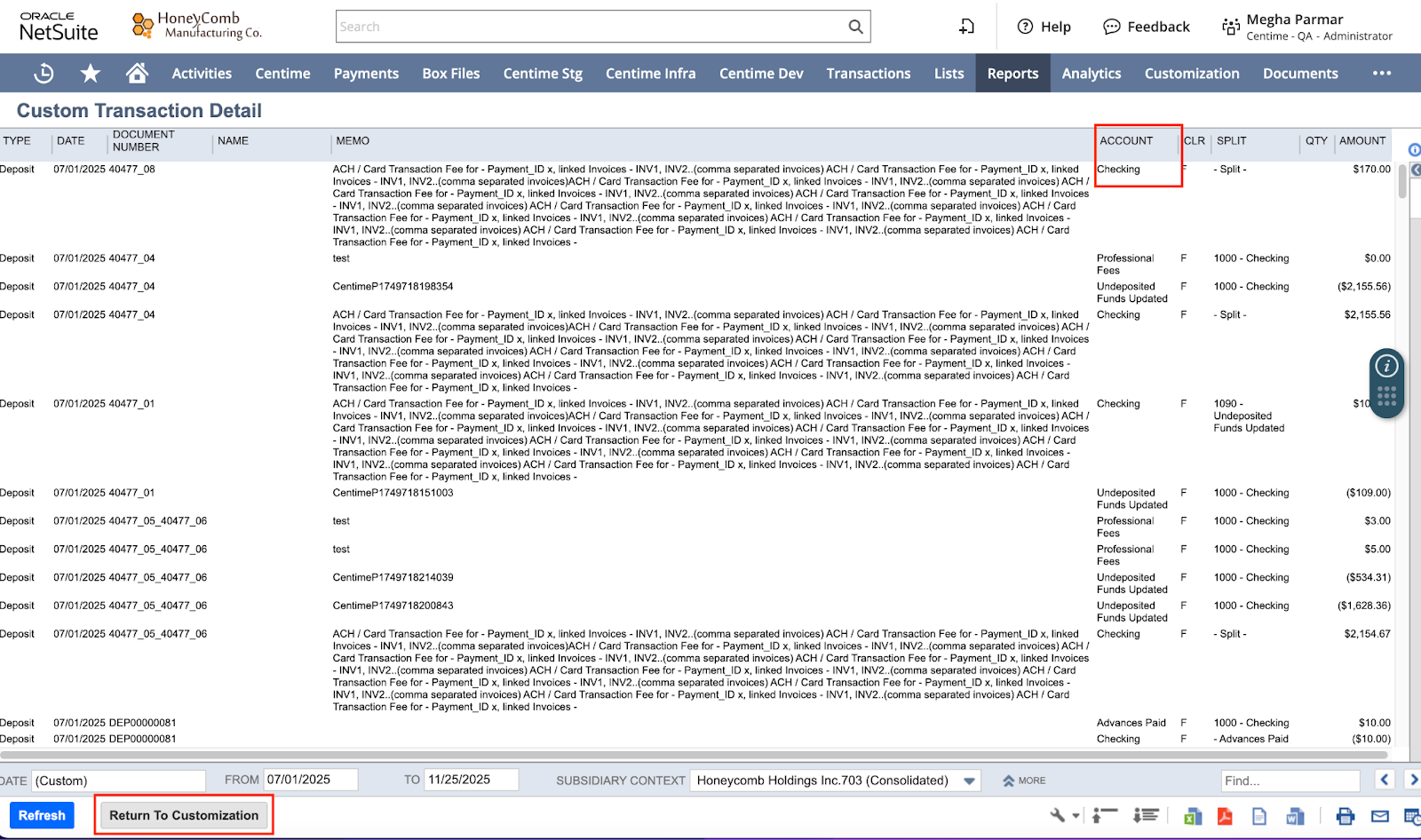
The report will now show only the transactions posted to that GL account, including:
- Deposits
- Payments
- Journal Entries
- Fees
Optional: Save It for Future Use
- Click Save As.
- Name it (e.g., Centime Processing Fees Report).
- Save to a folder that your AR team can access.